Lightpanda + Jev: 200ms decisions on every page

Adrià Arrufat
Software Engineer

TL;DR
Browser agents built on chat models spend seconds on small questions, such as whether a page is a login wall or which button closes the cookie banner. We integrated Jev, TypeSafe’s first System One model, into Lightpanda 1.0.3 to answer those questions instead. Jev answers in about 200ms and points at an element the browser already holds, so signing in to the page we tested took 0.34s instead of 5.0s with Claude Haiku 5.5.
Where chat models fall short on browser automation
Browser agents need to understand the structure of web pages. Is this page a login wall? Which of these buttons dismisses the banner?
A chat model gets those right most of the time. But every answer is a full turn of one to two seconds, and it comes back as text your code still has to parse. On a crawl of thousands of pages, those turns become costly in both tokens and time.
When TypeSafe released Jev, we wanted to know if it could replace those turns. This post is the story of our tests, and of the integration that came out of it.
Jev: what it is, and how it fits browser use cases
Jev is TypeSafe’s first System One model , a class of models built to make fast, structured judgments that software can use directly. You send it a state and a set of typed questions. Each question has a fixed shape: yes or no, one option out of a list, or a position on levels you define.
Jev returns a probability with each answer, and all the questions about one state travel in a single request. Jev never writes text. In TypeSafe’s words: “Jev makes judgments, code makes decisions” .
That constraint fits a browser because most decisions an agent makes on a page are choices from a finite set, and the browser already holds the information about every piece of that set (e.g. a cookie banner has a handful of buttons and a login form has a handful of inputs).
If the options are the page’s own elements, a typed answer is an element your code can click, with a probability your code can check.
The approach
We started by giving Jev the whole agent loop: at each step, pick the next action from the elements on the page. It was fast, but it hit a hard limit. Jev can’t write text, and browsing is full of text: URLs, search terms, form values.
So we asked a narrower question: where does an agent spend chat turns on something that needs no writing at all? The answer was the small checks around the real work. Is this page a wall? Which button closes the banner? Which field takes the username?
Why the semantic tree is the right input
First, we sent Jev the page as markdown. Markdown drops forms, dialogs and iframes, which is where most walls live. But G2 serves its CAPTCHA in an iframe on an otherwise empty page, so Jev saw nothing and called it an error page.
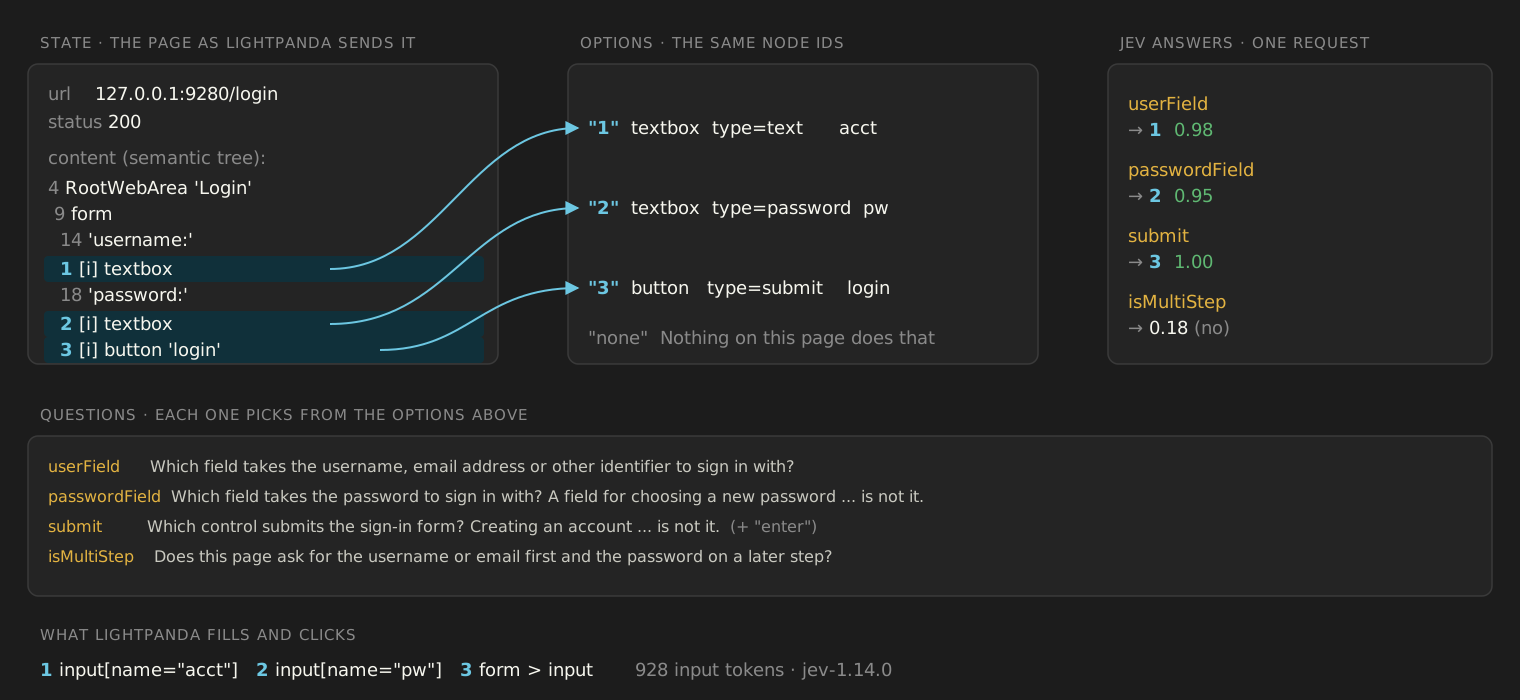
Switching to Lightpanda’s semantic tree cut wrong answers by about two thirds. The semantic tree carries each element’s role, accessible name and value, and whether it is checked or selected. It is far smaller than the HTML and every element in it has a node id.
Those node ids become the options for Jev. “Which button accepts cookies?” returns an element the browser already holds. Jev can’t invent a selector or point to an element that doesn’t exist. When nothing on the page fits, it answers none, an option we add to every question.
You can inspect the same tree yourself: it is exposed over CDP (Chrome DevTools Protocol) as LP.getSemanticTree, and as the tree tool over MCP.
What we built
Lightpanda builds the state from the page and turns the page’s elements into the options of a question. Jev judges and Lightpanda’s code decides what to do with the answer. The browser acts, and then it reads the page again to check the result.
This is what we shipped in 1.0.3 . The chat model keeps the work that needs language: the goal, the form values, the free-form answers. The browser handles the small judgments itself, typed and in a fraction of a second. Once a judgment is made, it can be saved and replayed without asking any model again.
We tested that approach on two jobs.
First job: triaging a crawl with Jev
A crawler that scrapes every page it loads ends up storing sign-in forms, CAPTCHAs and cookie banners as well as the real content it was trying to extract. Triage runs before the scraper and decides what happens to each page:
- keep it and pass it to the scraper
- skip it and log the reason
- act on it (accept the cookies, wait, back off), then judge it again
A 200 doesn’t tell you what you got
The server rarely tells you what kind of page you received. A login wall, a CAPTCHA, an empty search, a cookie banner and a polite “slow down” can all come back with a status code of 200. You can write rules for the cases you know about, but the web keeps inventing new ones.
Hacker News is a good example. Open three tabs at once and it sometimes answers with a single sentence saying it can’t serve requests that quickly. That comes back as a 200, and no rule catches it until someone has seen it.
A chat model can read that sentence, but each read is a 2 to 6s turn that returns text. This was the first job we gave Jev.
30 real sites in 10 seconds
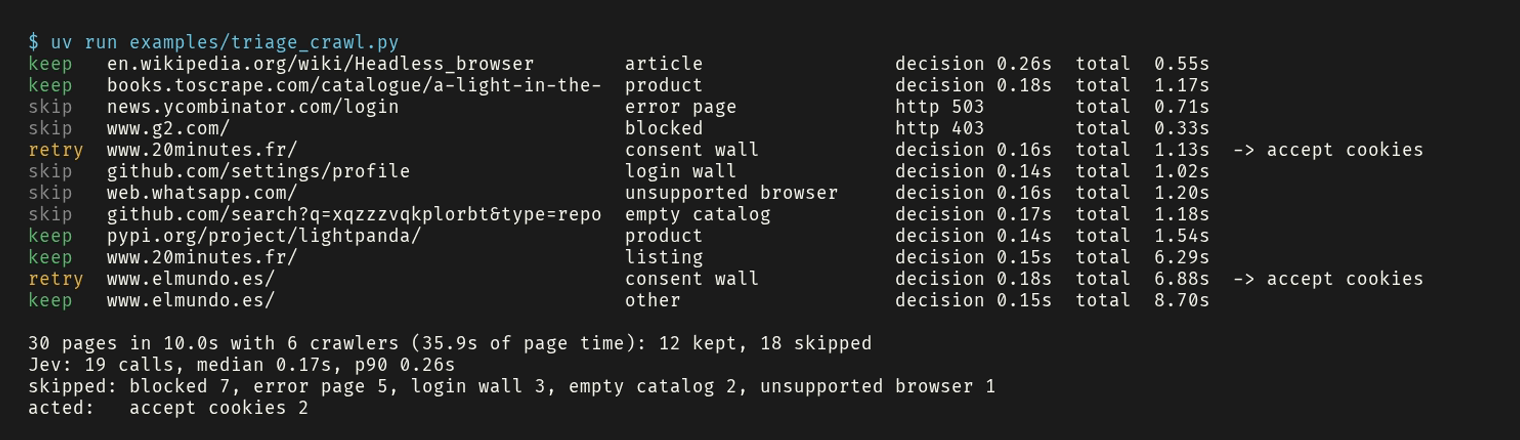
We ran the triage on 30 real sites, with six crawlers sharing one browser. The whole crawl took 10.0s. 12 pages were kept, 18 were skipped with a reason, and two cookie walls were accepted, then judged again. Jev answered 19 calls, with a median of 0.17s and a p90 of 0.26s.
Each line below is one verdict: what the crawler does, the page, what Jev saw, then the time of the judgment and the total time spent on the page. A page that answered 4xx or 5xx shows its HTTP status instead, because it never reaches Jev. You can reproduce the crawl yourself : the script, its full output and how to run it are on GitHub.
Second job: signing in with 2 Jev calls instead of 8 tool calls
The second test put two Lightpanda agents side by side on the same login page, a local copy of the Hacker News login form. The first one runs /login with Jev. The second one has no TypeSafe key, so the agent falls back to Claude Haiku 5.5 for the same job. The code of this test is in agent-benchmarks .
Claude Haiku works the way a chat model has to: it reads the tree, inspects the three candidate fields, fills both, clicks the button, then reads the tree again to check. That is 8 tool calls over 5 model turns.
With Jev, /login makes 2 calls: one to pick the fields and one to read the page after submitting (login wall 0.07, error page 0.02, so the sign-in worked). Over five runs on 1.0.3 it took 0.34s against 5.0s.
The result also lists the selectors Jev picked. That detail actually matters more than the speed, as replaying a saved script shows below.
How Jev works inside Lightpanda
Three tools on one substrate
Everything Jev does in Lightpanda goes through the same layer. tools/jev.zig builds the state from the semantic tree, holds the presets and applies the confidence gate. tools/choose.zig turns the page’s interactive elements into the options of a question. Three tools sit on top of it.
The first tool, classify, asks the base question: what is this page? One call asks every preset, and each one checks for a page that hides its content:
isLoginWall: a sign-in form or prompt instead of the contentisCaptcha: a CAPTCHA or human verification challengeisBlocked: a CAPTCHA, Cloudflare challenge or bot blockisConsentWall: a cookie consent banner over the pageisPaywall: content cut off behind a subscription or payment promptisEmptyCatalog: a search or filter that found nothingisErrorPage: an error such as page not found or server errorisUnsupportedBrowser: a page that says the browser is unsupported or that JavaScript must be enabledisLoading: content still showing as spinners or skeleton placeholdersisAgeGate: an age check before the contentisRegionBlocked: content not available in the visitor’s country or regionisRateLimited: a page that says too many requests were sent
Your own questions are in the same request, so each page costs one round trip.
In Python, classify is page.judge(), which also tells you whether to skip the page. Here it is with one question of each type, on a product page of books.toscrape.com:
verdict = page.judge(questions={
    "has_price": "Does the page show a price?",
    "kind": {"question": "What kind of page is this?",
             "options": ["product", "listing", "article", "other"]},
    "content": {"question": "How much useful content would a scraper get from this page?",
                "levels": ["none", "little", "plenty"]},
})
Each answer comes back under the key you gave the question. The full script, in the section below, prints the three answers in order: has_price, kind, then content:
0.99
{'choice': 'product', 'probabilities': {'product': 1, 'listing': 0, 'article': 0, 'other': 0}, 'confidence': 1}
{'score': 1.92, 'level': 'plenty', 'confidence': 0.9, 'probabilities': {'none': 0, 'little': 0.07, 'plenty': 0.93}}
When a preset fires, verdict.reason names it, and your own answers are in verdict.answers either way. To run this example yourself, see the section below.
The second tool, acceptCookies, builds on the same substrate. One request asks both “is this a consent wall?” and “which control dismisses it?”. The tool clicks, then reads the page again. If a banner is still up (a confirmation step, for example), it picks again from what is now on screen. The page itself says whether the click worked, which is why this needed no labelled data.
The third tool, login, has Jev pick the identifier field, the password field and the submit control, and only asks about what the markup leaves ambiguous. Two rules keep credentials safe. The password only ever goes into an input[type=password], checked after the decision, whatever the page text says. Every decision is also made before anything is filled, so a username typed into a plain text field never ends up in the state sent to Jev.
Replay a saved script with no model call
acceptCookies and login return the selectors they used, and the call is recorded with them. When you save the session with /save, the PandaScript calls the tool with those selectors, so a replay runs with no Jev call and no API key. This is where “fast” becomes “free from the second run on”.
Here is the login from the demo above, saved as a script. The selectors are the ones Jev picked on the login page:
// login.js: written by /save after the /login session
const page = new Page();
await page.goto("http://127.0.0.1:9280/login");
page.login({
  username: "$LP_USERNAME",
  password: "$LP_PASSWORD",
  usernameSelector: 'input[name="acct"]',
  passwordSelector: 'input[name="pw"]',
  submitSelector: "form > input",
});
Run it with lightpanda run login.js. The cookie banner works the same way: page.acceptCookies({ selectors: ["#accept"] }) clicks the recorded control and never reaches a model.
Limits worth knowing
Jev judges and our code decides, so the code is also where we handle the pages Jev gets wrong. Four limits are worth knowing:
- Jev isn’t deterministic, and TypeSafe documents this . In our probes, one Le Monde 404 came back as three different classes across byte-identical requests.
- Some pages are hard to call. Zillow’s home page scores as an empty search, and Le Monde’s front page leans paywall (0.71).
- High confidence doesn’t mean correct. Two Yahoo consent walls came back wrong at 0.99. That is why the tools act above a plain 0.5 gate and then check their work by reading the page again, instead of trusting a finer threshold.
- It can’t type. Form values come from you or from a chat model.
What’s next for Jev in Lightpanda?
Triage and sign-in were the first two jobs. Here is what we are exploring next.
- More questions about each page. Today
classifytells you whether a page hides its content. We want it to also say what kind of page it is and what each part of the page holds, so a scraper can go straight to the part it needs. These would be more questions in the same request, so a page would still cost one round trip. - A split agent loop. For now the chat model drives every step and calls Jev as a tool. We want the chat model to set the goal once, and Lightpanda to drive pagination and extraction with Jev from there. The chat model would be called again only when something fails or when there is text to write.
- A local page classifier. We are testing a small model that answers the same twelve presets on the machine, without a network call.
- A chat-model fallback everywhere. Without a TypeSafe key, only the agent REPL falls back to a chat model. We want the same over MCP and in scripts.
- Per-site caching. Some answers hold for every page of a site, like a cookie wall or an age check, so the browser should ask about those once per site. Others, like an empty search or a rate limit, change from page to page and still need a fresh look.
Try Jev in Lightpanda
There are three ways to try Jev in Lightpanda: the Python package, the agent REPL and the MCP server. All three need a TypeSafe API key, set as TYPESAFE_API_KEY. You can create one in the TypeSafe console .
Without a key, the agent REPL falls back to a chat model for /login and /acceptCookies, with the $LP_* credential placeholders passed through so the secrets stay out of the prompt. Over MCP or in the Python package, the tools return a “key is not set” error. Replaying a saved script needs no key at all.
With Python
Run the triage crawl from the demo. The script declares its dependencies inline, so uv installs the lightpanda package from PyPI for you:
export TYPESAFE_API_KEY=<your key>
uv run https://raw.githubusercontent.com/lightpanda-io/lightpanda-python/main/examples/triage_crawl.py
To call page.judge() yourself, save this script as judge_demo.py. It runs the example from Three tools on one substrate:
# /// script
# requires-python = ">=3.10"
# dependencies = ["lightpanda>=1.0.3"]
# ///
from lightpanda import Browser

with Browser() as browser, browser.new_session() as page:
    page.goto(url="https://books.toscrape.com/catalogue/a-light-in-the-attic_1000/index.html")
    verdict = page.judge(questions={
        "has_price": "Does the page show a price?",
        "kind": {"question": "What kind of page is this?",
                 "options": ["product", "listing", "article", "other"]},
        "content": {"question": "How much useful content would a scraper get from this page?",
                    "levels": ["none", "little", "plenty"]},
    })
    if not verdict.ok:
        print("skip", verdict.reason)
    else:
        print(verdict.answers["has_price"])
        print(verdict.answers["kind"])
        print(verdict.answers["content"])
Then run it with uv run judge_demo.py, with TYPESAFE_API_KEY set. Point it at https://github.com/settings/profile and it prints skip is_login_wall instead. In your own project, install the package with pip install lightpanda (version 1.0.3 or later).
In the agent REPL
curl -fsSL https://pkg.lightpanda.io/install.sh | bash -s "1.0.3"
export TYPESAFE_API_KEY=<your key>
lightpanda agent
Then, in the REPL:
/goto https://www.elmundo.es
/acceptCookies
Over MCP
Install Lightpanda as above, then add the server to your MCP host’s configuration, with your key:
{
  "mcpServers": {
    "lightpanda": {
      "command": "/path/to/lightpanda",
      "args": ["mcp"],
      "env": { "TYPESAFE_API_KEY": "<your key>" }
    }
  }
}
Then ask your agent to open elmundo.es and accept the cookies: it calls the acceptCookies tool. The classify and login tools work the same way.
FAQ
When should I use a typed model instead of a chat model for browser automation?
Use a typed model when the answer can be picked from a set you know in advance: is this page a wall, which of these buttons dismisses the banner, how much content does the page have. Use a chat model when something has to be written, such as the values that go into a form. In Lightpanda, Jev makes the judgments on the page, code turns them into actions, and the text comes from you or from a chat model.
How do I ask Jev my own questions about a page?
Pass them to page.judge() in the Lightpanda Python package, next to the twelve built-in presets, and they travel in the same request. A question can be yes or no, a choice between options you list, or a score on levels you name. Each answer comes back under the key you gave the question.
Does Jev work with Playwright or Puppeteer?
Not directly. In Lightpanda 1.0.3 the Jev tools are exposed through the agent REPL, the MCP server, PandaScript and the Python package, not as CDP commands, so a Playwright or Puppeteer script connected over CDP can’t call them. You can keep your CDP script for navigation and run the judgment step through the Python package or the MCP server.
Does Jev ever see my password?
No. The Lightpanda login tool makes every decision before it fills anything, so typed values never reach the state sent to Jev. The password only goes into an input[type=password] field, and with $LP_* placeholders the secret is substituted by the browser at fill time.
Why does Jev sometimes give different answers for the same page?
Jev isn’t deterministic, and TypeSafe documents this. A probability near 0.5 means the page is ambiguous, and even confident answers can be wrong. Lightpanda’s tools act above a 0.5 gate and then read the page again to check that the action worked.
Adrià Arrufat
Software Engineer
Adrià is an AI engineer at Lightpanda, where he works on making the browser more useful for AI workflows. Before Lightpanda, Adrià built machine learning systems and contributed to open-source projects across computer vision and systems programming.